User Guide
From setup to getting the most out of Saiban Pro
Contents
Installation
Install easily from the monday.com Marketplace.
Install from Marketplace
Log in to monday.com, search for "Saiban Pro" in the Marketplace, and click the Install button.
Add to Workspace
After installation, add the app to your desired workspace. Administrator permissions may be required.
Required Permissions
This app uses the following permissions:
- boards:read - Read board information
- boards:write - Write numbers to items
Automation Recipe Setup
Set up an Automation Recipe to auto-number items when they are created.
Use monday.com's Automation feature to automatically generate numbers based on triggers like item creation.
Open Automation Center
Click the "Automate" button in the top-right corner of your board to open the Automation Center.
Create New Automation
Click "Add Automation" and select "Custom".
Select Trigger
Choose a trigger such as "When an item is created".
Select Saiban Pro Action
Search for "Saiban Pro" in actions and select "Assign number to item".
Configure Parameters
Set the parameters needed for numbering.
Configuration Parameters
Select the text column where the number will be written
Specify a saved rule or custom format
Choose when the counter should reset
Initial counter value (usually 1)
Example Setup
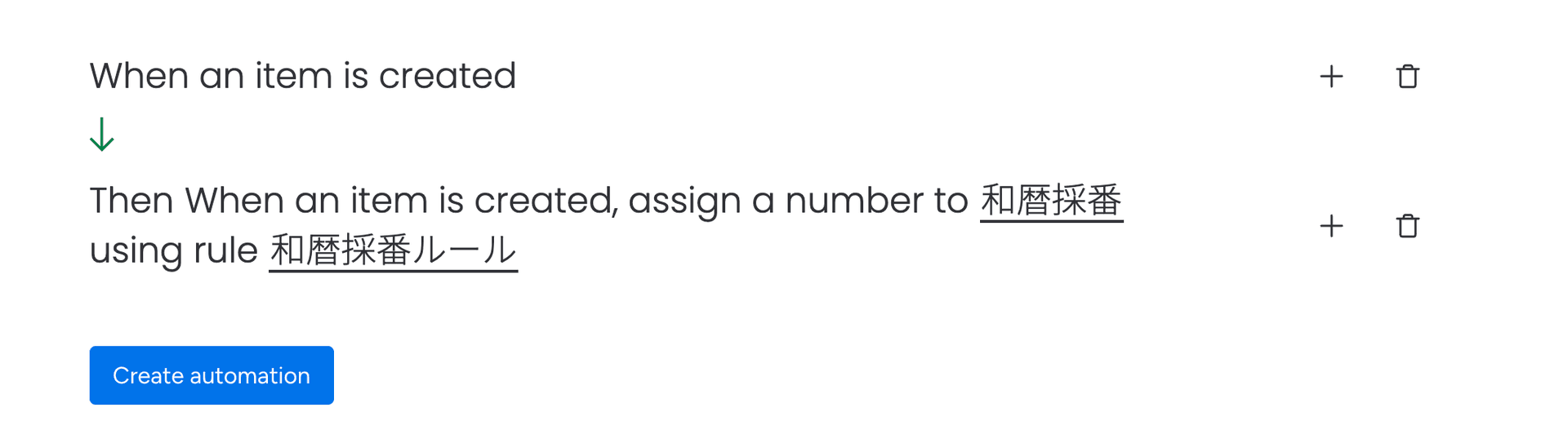
Example setup for numbering items using a Japanese era rule when created
Trigger Limit
When a workflow is triggered at once, numbering is supported for up to 200 items.
If you need to number more than 200 items, use the Bulk Numbering feature in Board View. Specify that the target ID column is blank as the condition for items to be numbered, so only unnumbered items will receive numbers.
Using Board View
Board View provides rule management and bulk numbering functionality.
Accessing Board View
Add "Saiban Pro" from your board's View tab to access the numbering rules management screen.
Rule Management
Save frequently used format settings as rules to reuse in Automation Recipes.
Create New Rule
Click "Create New Rule" and set the rule name, format, reset rule, and start number.
Rule Creation Screen
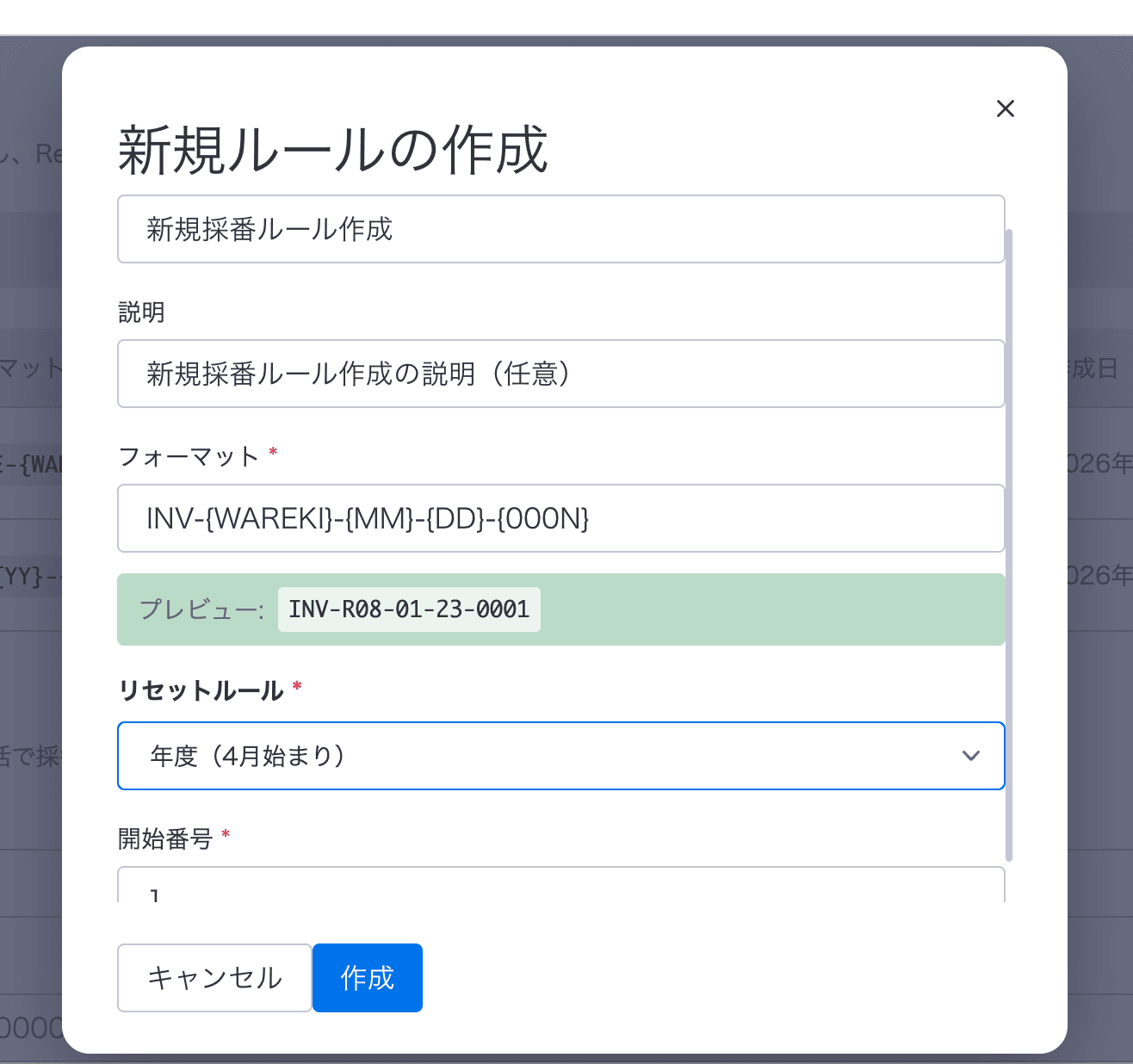
Set rule name, format, reset rule, and start number to create a rule
Edit Rule
Click the "Edit" button on any rule in the list to modify its settings.
Delete Rule
Remove rules you no longer need using the "Delete" button.
Bulk Numbering
Apply numbering to existing items all at once.
Use Case
Use this when you need to add numbers to previously created items or want to reset and re-number.
How to Execute
- 1Select the target column
- 2Configure format and reset rule
- 3Click "Execute Bulk Numbering"
- 4Confirm by clicking "Execute" in the dialog
Note: Bulk numbering processes items in order of creation date. Processing may take time for large numbers of items.
Bulk Numbering Screen
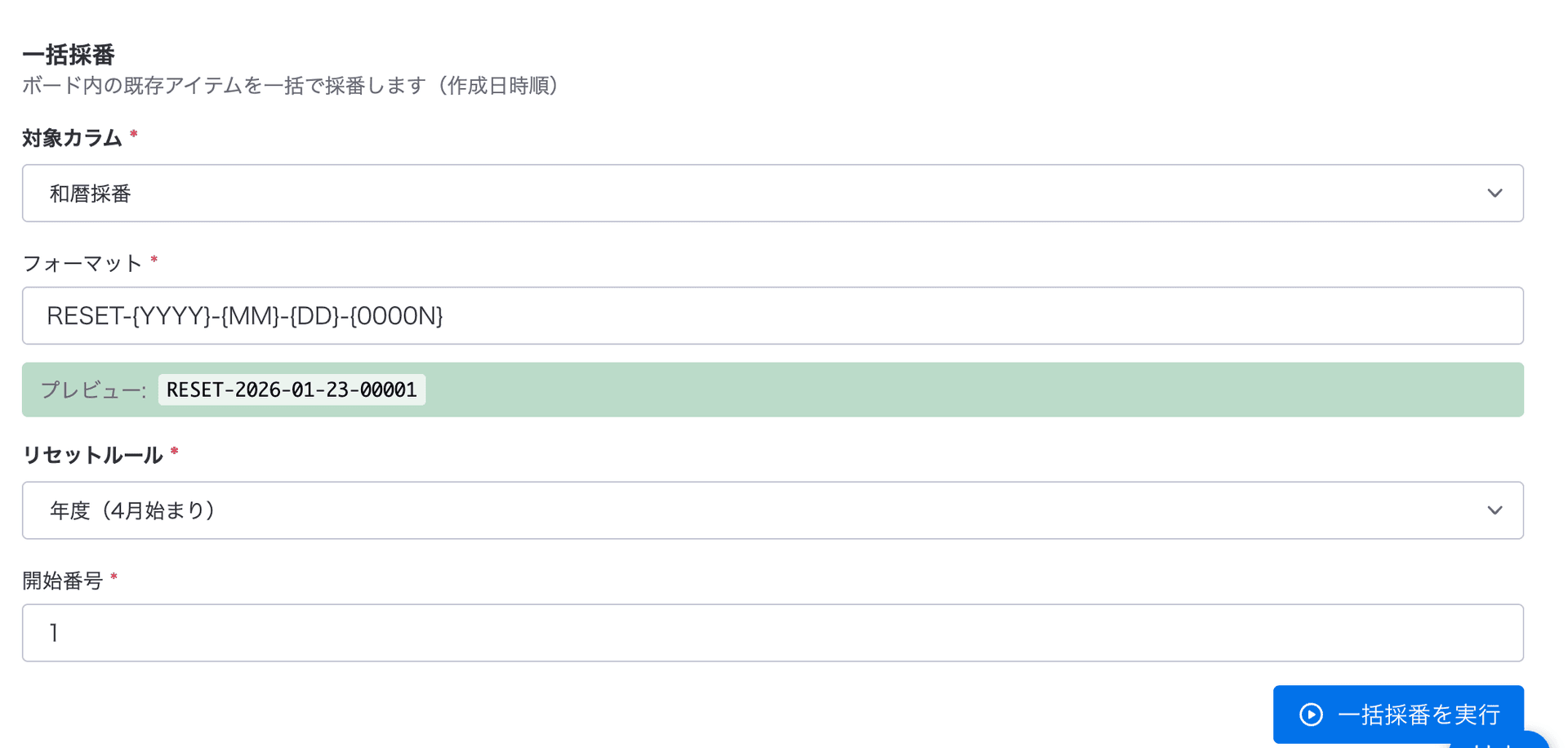
Select target column and rule to execute bulk numbering
Format Reference
Available placeholders for numbering formats.
Placeholder List
| Placeholder | Description | Example |
|---|---|---|
| {N} | Raw sequence number | 1, 2, 3... |
| {0N} | 2-digit zero-padded | 01, 02, 03... |
| {00N} | 3-digit zero-padded | 001, 002, 003... |
| {000N} | 4-digit zero-padded | 0001, 0002, 0003... |
| {0000N} | 5-digit zero-padded | 00001, 00002... |
| {YYYY} | 4-digit year | 2025 |
| {YY} | 2-digit year | 25 |
| {FY} | Fiscal year (April start) | 2025 |
| {MM} | 2-digit month | 01, 12 |
| {DD} | 2-digit day | 01, 31 |
| {WAREKI} | Japanese era notation | R7 |
Format Examples
Invoice number
INV-{YYYY}-{000N}
→ INV-2025-0001
Fiscal year-sequence
{FY}-{0000N}
→ 2025-0001
Japanese era-sequence
{WAREKI}-{000N}
→ R7-001
Year-month-sequence
{YYYY}{MM}-{00N}
→ 202501-001
Reset Rules
Choose when the counter should reset.
| Rule | Description | Reset Timing |
|---|---|---|
| none | No reset (continuous sequence) | Never resets |
| fiscal_year | Fiscal year reset | April 1st annually |
| calendar_year | Calendar year reset | January 1st annually |
| monthly | Monthly reset | 1st of each month |