How to use Atelie
An eight-chapter guide from installation through daily use
1. 1. Installation
1) Double-click the downloaded .dmg in Finder to open it. 2) In the mounted DMG window, drag Atelie.app into /Applications. 3) Find Atelie in Launchpad or Spotlight and launch it. Because the app is signed, there is no need to right-click and open.
It's signed, notarized and stapled, so you won't see a Gatekeeper warning on first launch.
2. 2. Choosing a workspace
On first launch, the Onboarding screen appears. Selecting 'Use ~/Atelie' creates a new workspace directly under your home directory. 'Choose another folder' lets you pick any location — an existing Markdown folder, a folder inside iCloud Drive, etc. The workspace will contain projects/, attachments/, and .atelie/ (SQLite cache). You can change the workspace later from Settings → Vault.
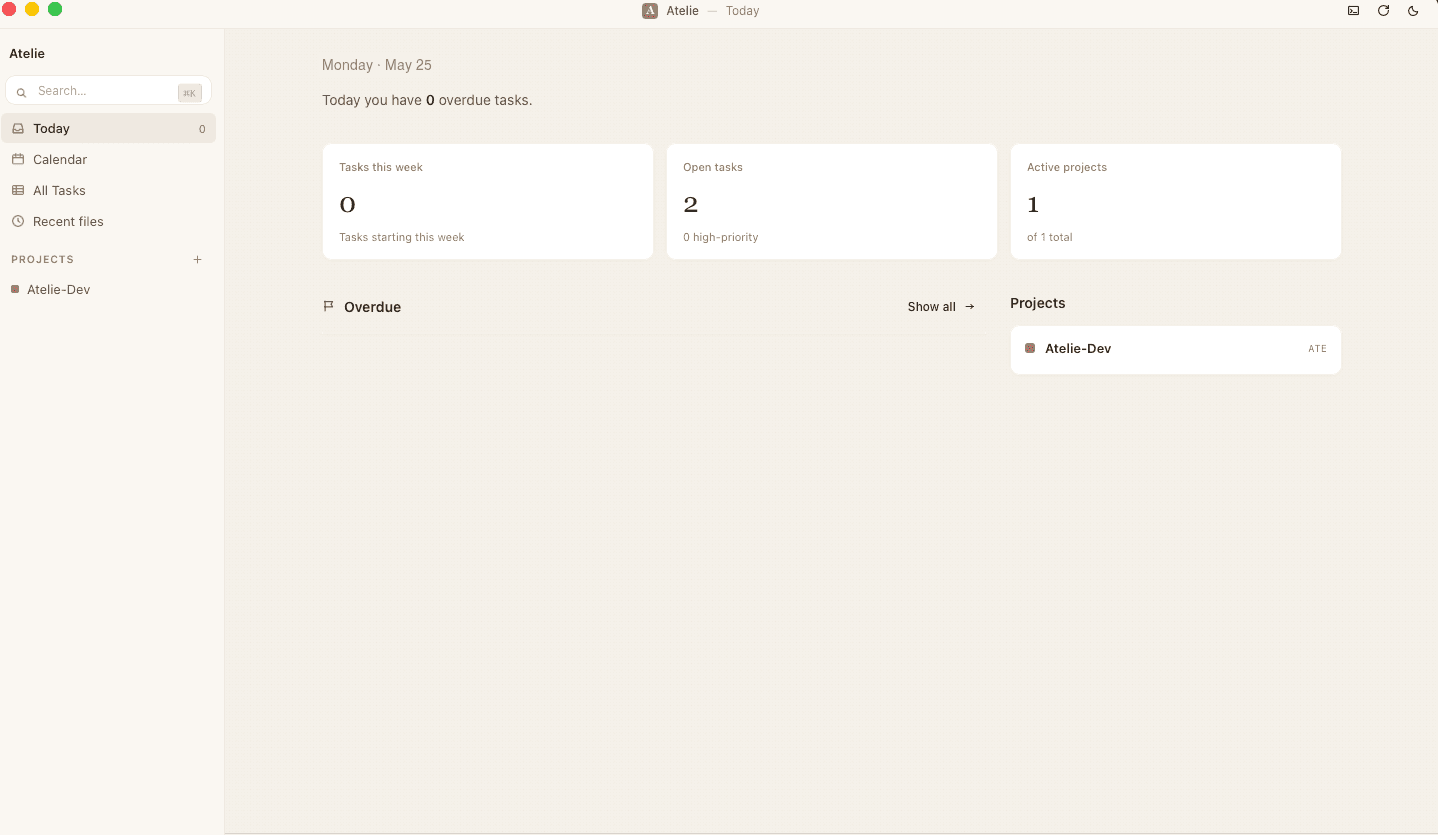
Your workspace is ~/Atelie. You can browse its contents directly in Finder anytime.
3. 3. Creating your first note
Click the '+' button in the sidebar, pick a project, and create a new task or note. The frontmatter (id, status, created, etc.) is filled in automatically. The body uses standard Markdown (headings, lists, code blocks, images, etc.). You can also use the slash menu (type `/` to see a list) to insert blocks.
---
id: t-001
project: atelie-dev
title: My first note
status: todo
priority: med
due: 2026-05-30
tags: [idea]
---

Write your note body here in Markdown.The frontmatter id is a stable reference — rename the file and your links still hold.
4. 4. Projects and tasks
A project is a container for tasks. When creating a project you can define custom statuses (e.g., todo / doing / review / done). Tasks support status, priority, due date, and estimate. Dragging a card across columns in Kanban view updates the status and automatically writes back to the frontmatter.
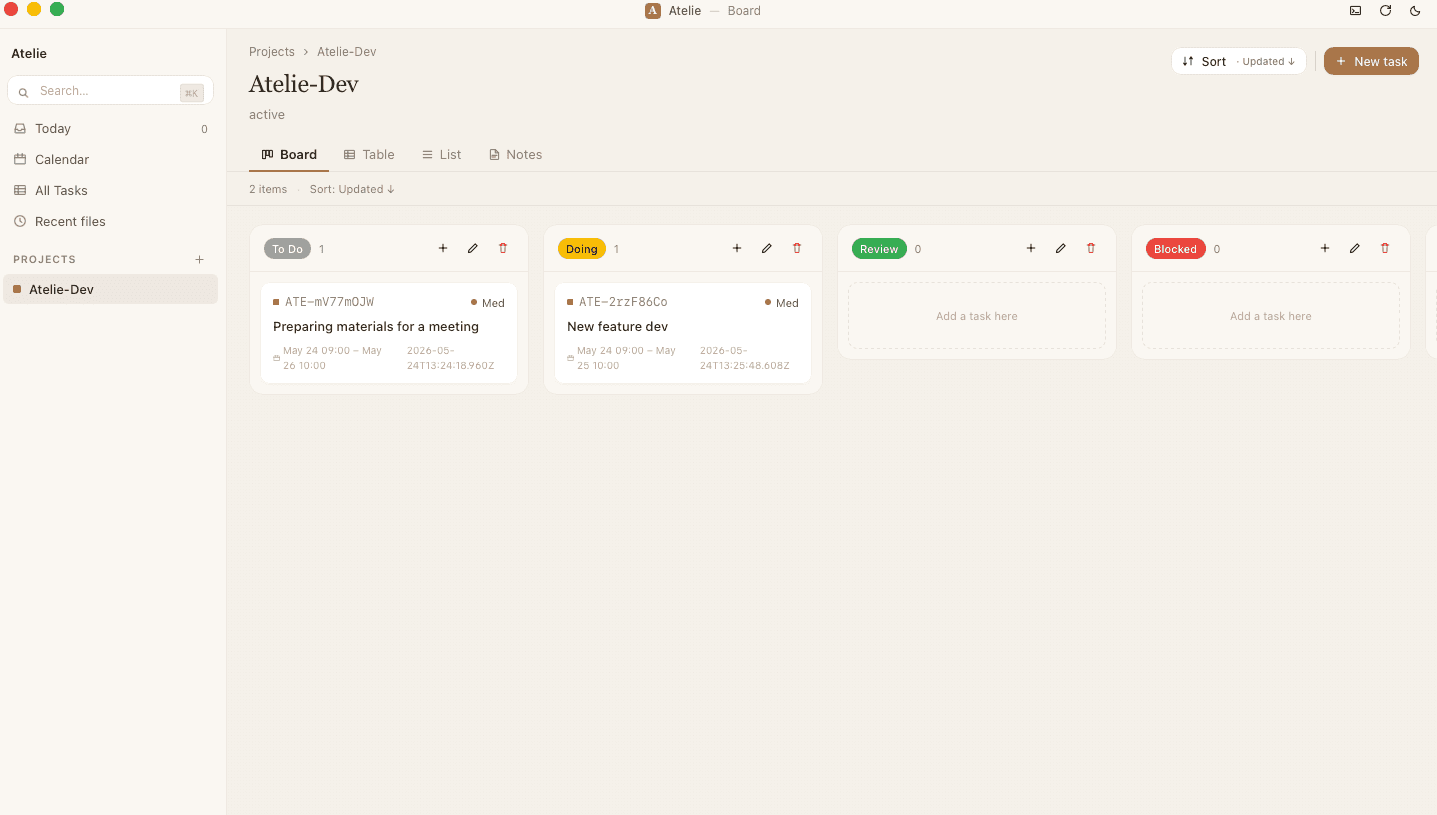
Drag a card on the board and the status writes itself back into the frontmatter.
5. 5. Linking with wikilinks
Type `[[` in the body to open the suggestion popup. Picking an existing note inserts a wikilink node, which is serialized as [[note-id|title]] when saved. Because the reference is by stable ID, renaming the file does not break the link. The right panel's 'Backlinks' section shows every note that references the current note.
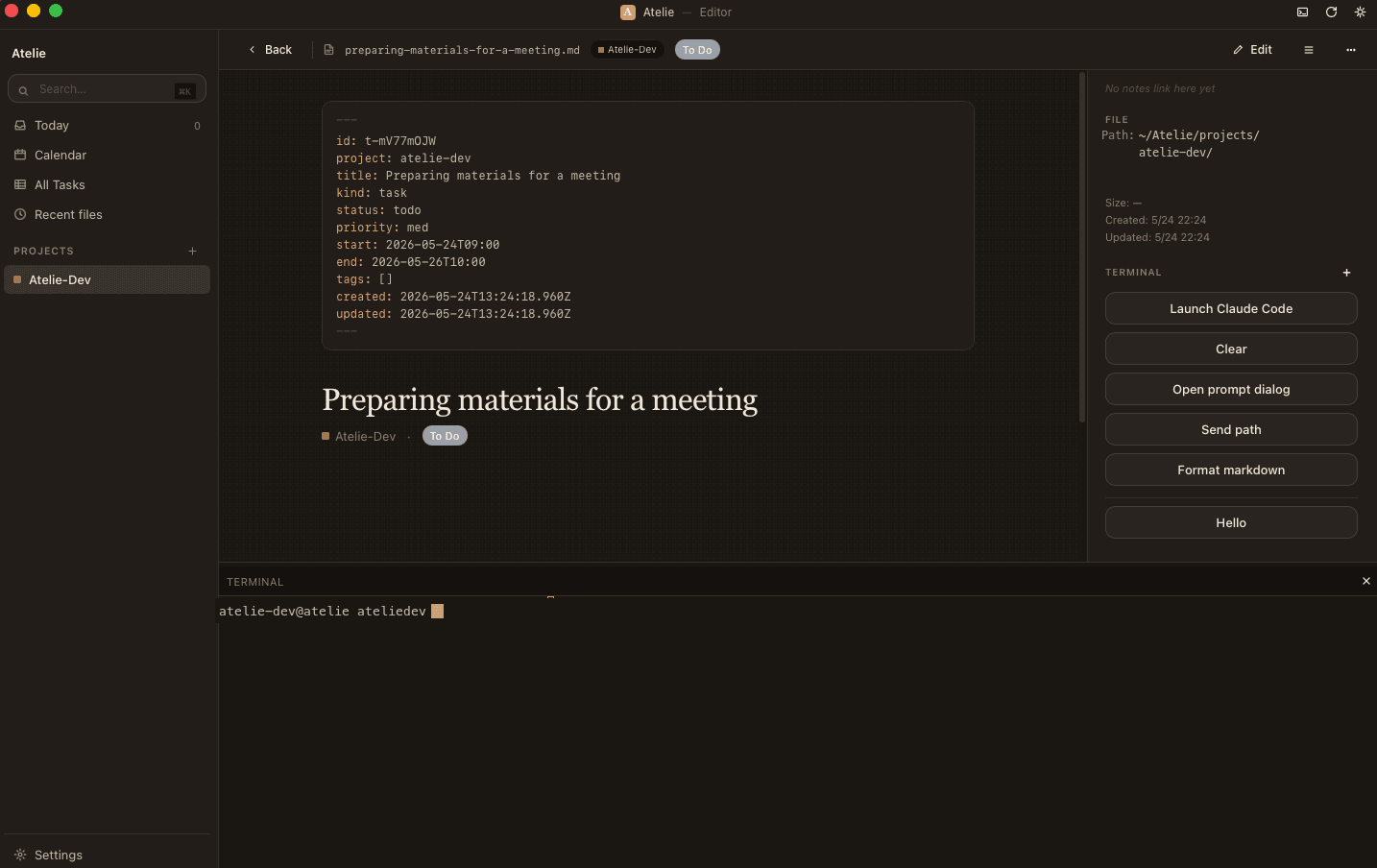
Type [[note-id]] in your text to
create a two-way link to another note.

e.g. See [[2026-04-24-meeting]] for details.Type [[ to get suggestions. If the target note doesn't exist, you can create it on the spot.
6. 6. Search
Type a keyword in the sidebar search box to instantly search every project's titles and bodies. Powered by SQLite FTS5 with a trigram tokenizer, so it works for Japanese as well. Tag chip filters apply simultaneously (search AND tag matches both).
Japanese is indexed with a trigram tokenizer, so partial matches are found quickly too.
7. 7. Backing up with git (optional)
Every Atelie note is a plain Markdown file. The app itself doesn't sync, but your workspace (~/Atelie) is just a folder, so you can version and back it up with the git you already know. Run cd ~/Atelie && git init, then git add -A && git commit. Push to a remote like GitHub and you can manually sync to another Mac. It isn't cloud sync — it's a backup where you stay in control.
cd ~/Atelie
git init
git add -A
git commit -m "snapshot"Run cd ~/Atelie && git init to start versioning with the commands you already know.
8. 8. Troubleshooting
・ "A warning appears and double-click does not open the app": This should not normally happen. If it does, notarization may be corrupted — please contact support. ・ "My file edit doesn't show up in the app": File watching has a few seconds of delay. If it still doesn't appear, try Settings → Vault → 'Rebuild index'. ・ Log files are written to ~/Library/Logs/Atelie/atelie.log.YYYY-MM-DD. Attaching this to a support email makes diagnosis much faster.
Logs are written daily to ~/Library/Logs/Atelie/. Attaching them speeds up support.