Scheduled JQL Actions — User guide
Write a JQL query, pick a schedule, pick an action. The app comments, updates fields, or moves issues on its own, without touching your Jira Automation quota.
What this app does
Scheduled JQL Actions runs a saved JQL query on a schedule and acts on every issue it finds. It can post a comment that mentions the assignee, set a priority, add or remove labels, or move issues through your workflow by transition name.
It never creates or consumes a Jira Automation rule. Jira Automation counts every execution against a site-wide monthly limit, and once you hit that ceiling every automation on the site stops. This app runs outside that counter, so your budget stays where you need it.
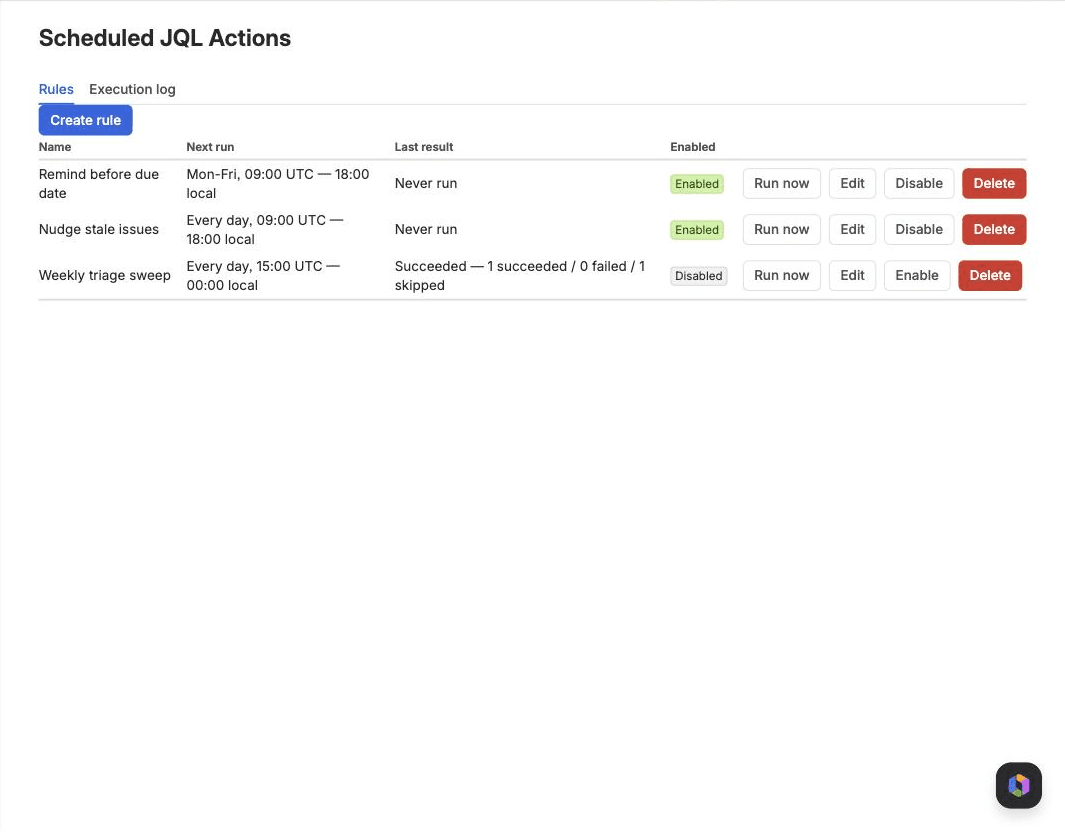
You will find it under Jira settings, in the Apps section, as "Scheduled JQL Actions". Only site administrators can open it.
Creating a rule
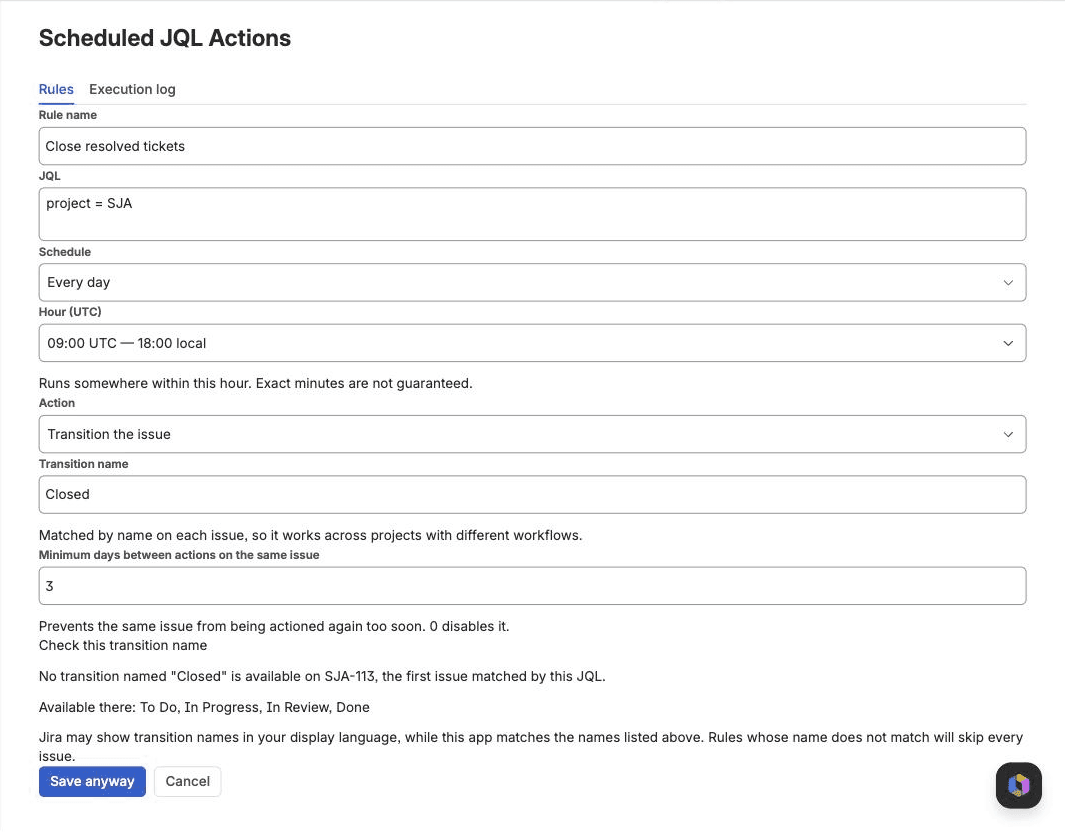
Select Create rule and fill in four things.
- JQL
- The query that decides which issues the rule acts on. Anything you can write in the Jira issue search works here. The rule is checked against Jira when you save, so a query with a syntax error cannot be stored.
- Schedule
- Every day, weekdays only, or the specific days of the week you choose.
- Hour (UTC)
- The hour the rule runs, in UTC. The editor shows you the local equivalent while you pick, so you do not have to convert it yourself. A rule runs somewhere within that hour; the exact minute is not guaranteed.
- Action
- Comment, update fields, or transition. See the next section.
A saved rule starts enabled. Use Disable to stop it without deleting it, and Enable to start it again. You can keep up to 50 rules.
The three actions
Each rule performs one action on every issue its query matched.
- Comment
- Posts a comment that mentions the assignee. The assignee gets the same email Jira sends for any other mention, so nothing new lands in their inbox rules. Unassigned issues get the comment without a mention.
- Update fields
- Sets a priority, adds labels, or removes labels.
- Transition
- Moves the issue by transition name rather than by workflow ID, so one rule works across projects whose workflows differ.
Transition names are matched exactly, ignoring upper and lower case. Jira shows transition names in each viewer’s display language, while the app reads the names as your workflow defines them. When you save a transition rule, the app checks the name against the first issue your query matches and lists the names that actually exist there, so a mismatch shows up before the rule ever runs.
Trying a rule before it acts
Dry run shows how many issues a rule would touch without touching any of them. It goes through the same code path as a real run, including the permission checks, so what you see is what you get. The result is recorded in the execution log with the mode marked as a dry run.
Run now performs the action immediately instead of waiting for the schedule. Use it after a dry run looks right. Both are available from the rule list.
What stops a rule from doing damage
Four things limit what a single run can do.
- Cooldown
- Stops a rule from acting on the same issue again for up to 14 days. Set it to zero when you want the rule to act every time it runs.
- A cap of 100 issues per run
- A run acts on at most 100 issues. When a query matches more, the log says the run was capped, so a typo in a JQL query cannot notify a thousand people at once.
- The rule author’s permissions
- Before acting on an issue, the app checks the permissions of the administrator who created the rule. If that person could not comment on the issue themselves, the app skips it. A rule cannot be used to reach issues its author cannot see.
- Automatic disabling
- A rule that fails three times in a row is disabled automatically and marked in the rule list, so a broken rule stops rather than failing quietly forever.
Reading the execution log
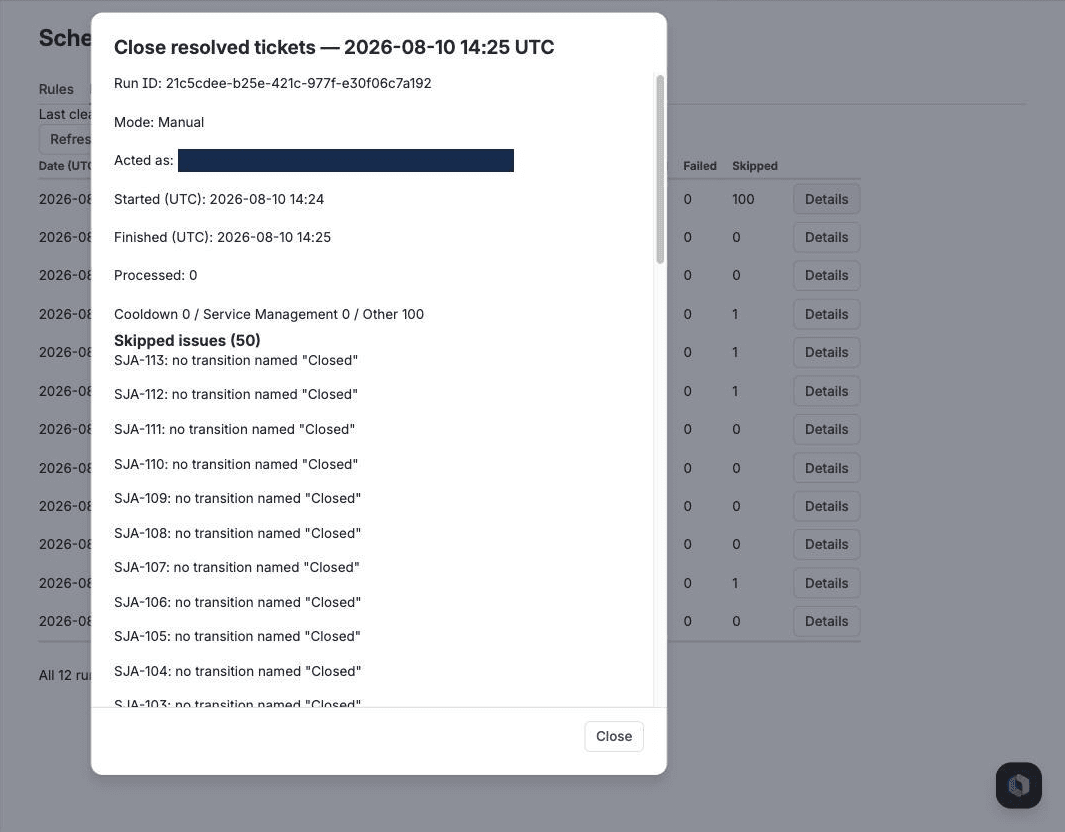
The Execution log tab lists every run, newest first, with what it matched, what it changed, what failed, and what it skipped. Select Details on any row to see the full record.
When a run skips an issue, the log names the issue and the reason. Reasons include the cooldown still being active, the issue belonging to Jira Service Management, the rule author lacking permission, and a transition name not existing on that issue.
Execution logs are kept for 90 days and then deleted automatically.
What this app does not do
- Jira Service Management is not supported
- A comment on a service request can be visible to the customer who raised it. Rather than risk sending a customer a message meant for your team, the app detects service management issues while it runs and skips them, recording the reason in the log.
- Schedules are hourly at their finest
- The platform offers no minute-level or cron scheduling, so neither does this app. A rule runs somewhere within the hour you choose.
- No Slack, Teams, or custom email
- Notifications go through Jira’s own mention system. The app makes no network calls outside Atlassian’s infrastructure and uses no third-party services.
- English only
- The admin screens, and every comment the app posts, are in English.
When something looks wrong
- The log says no transition named "..."
- The name in the rule does not match any transition available on that issue. The warning shown when you save the rule lists the names that exist. Note that Jira may display transition names translated into your language while the workflow stores them under a different name.
- A rule runs but changes nothing
- Open the run in the execution log and read the skip reasons. The most common causes are a cooldown that has not expired, issues belonging to Jira Service Management, and the rule author lacking permission on those issues.
- A rule shows as disabled on its own
- It failed three times in a row and was disabled automatically. Fix the cause shown in the log, then enable it again.
- The run says it was capped
- The query matched more than 100 issues and the run acted on the first 100. Narrow the query, or let the rule work through the backlog over several runs.
Getting help
Send us the rule name and, if you have it, the Run ID shown in the execution log. We answer support email ourselves and aim to reply within two business days.
support@scritt.com