Pick List Generator User Guide
Build batch-picking lists straight from your monday.com order board. No spreadsheets, no separate warehouse system.
Before you start
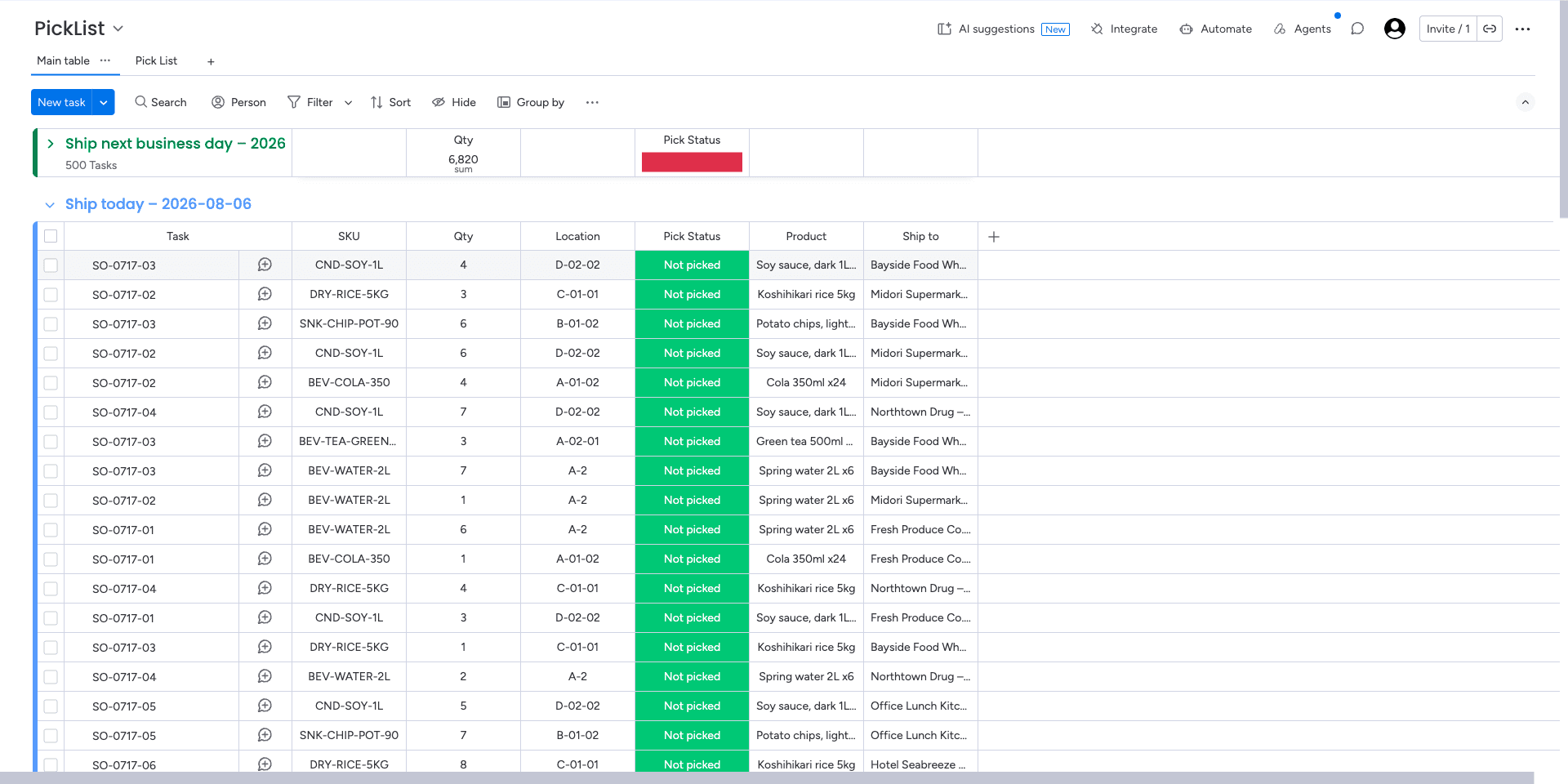
You need an order board with four columns: SKU, quantity, storage location and status. A column holding an order reference is optional, but set one up if you can. It is what the breakdown shows your team at the sorting station.
The app works with two board layouts.
- Orders with subitem lines
- One item is one order, and its subitems are that order's lines.
- Flat
- One item is one order line, so an order of four lines appears as four items.
Add the app to that board as a Board View. The setup wizard starts on its own the first time you open it.
Step 1: Set up your board (once)
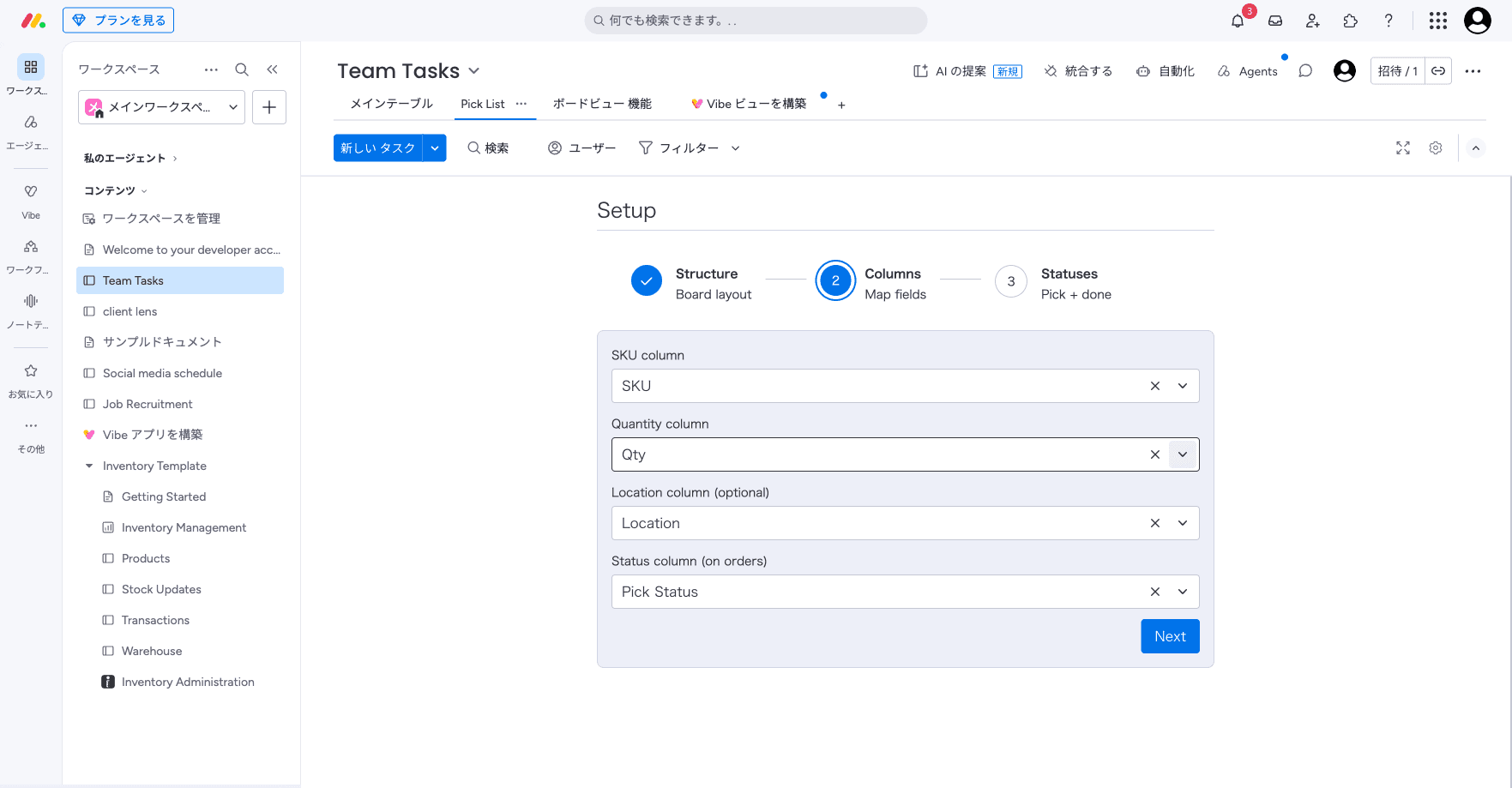
The setup wizard has three steps.
- Board layout
- Choose Orders with subitem lines or Flat. The app detects this for you, but check that it matches your board.
- Column mapping
- Tell the app which of your columns hold the SKU, quantity, location, order reference and status. Column names differ from warehouse to warehouse, so the app cannot guess them.
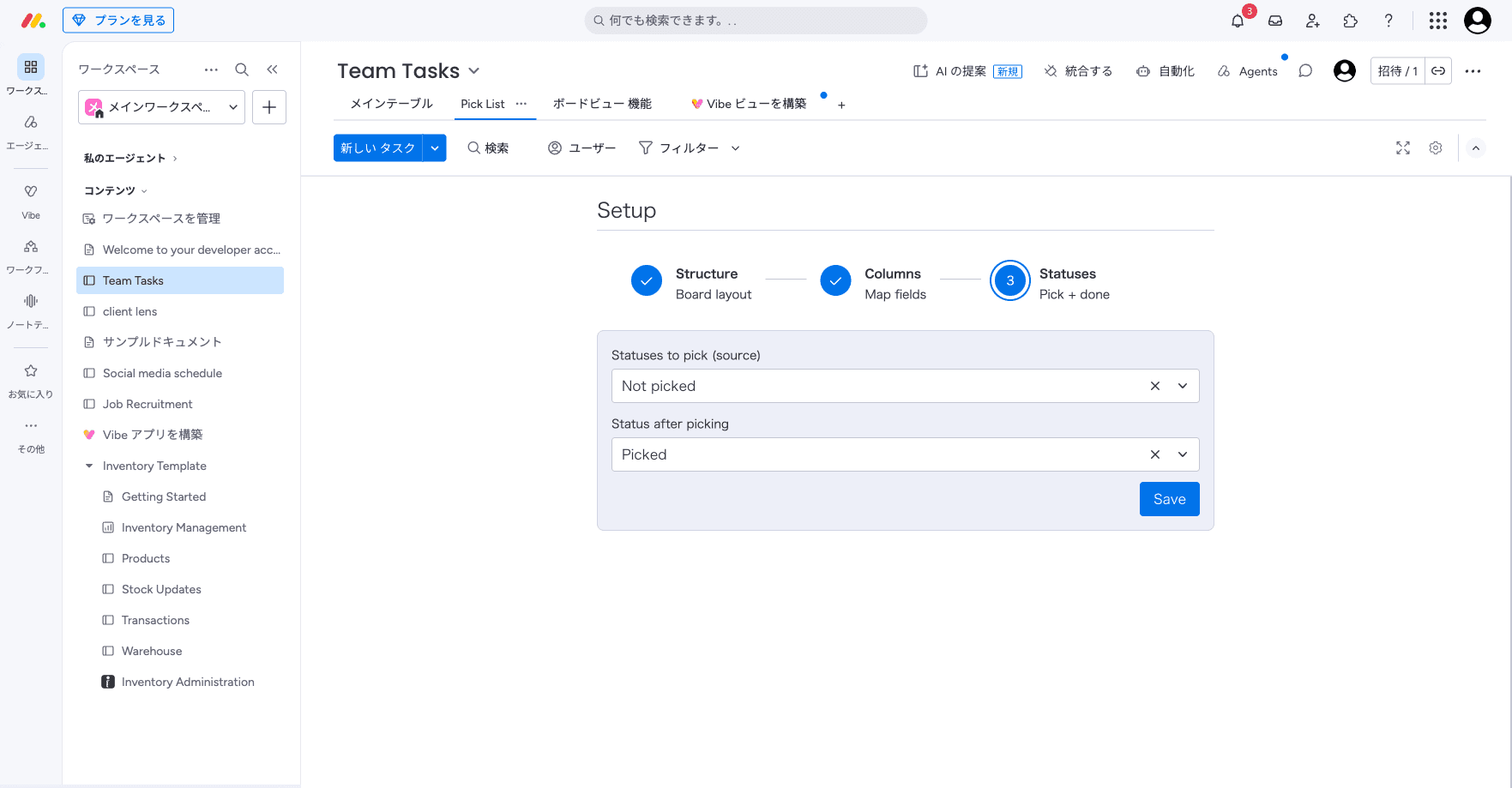
- Statuses
- Choose which status value marks an order as ready to pick, and which status to set once it has been picked. You can also cap how many pick lines go into a single wave, 500 by default. Anything past the cap moves into the next wave.
Your settings are stored per board in monday.com, so you only do this once. Re-open Setup whenever the mapping needs to change. Your current values are waiting there for you to edit.
Step 2: Generate a pick list
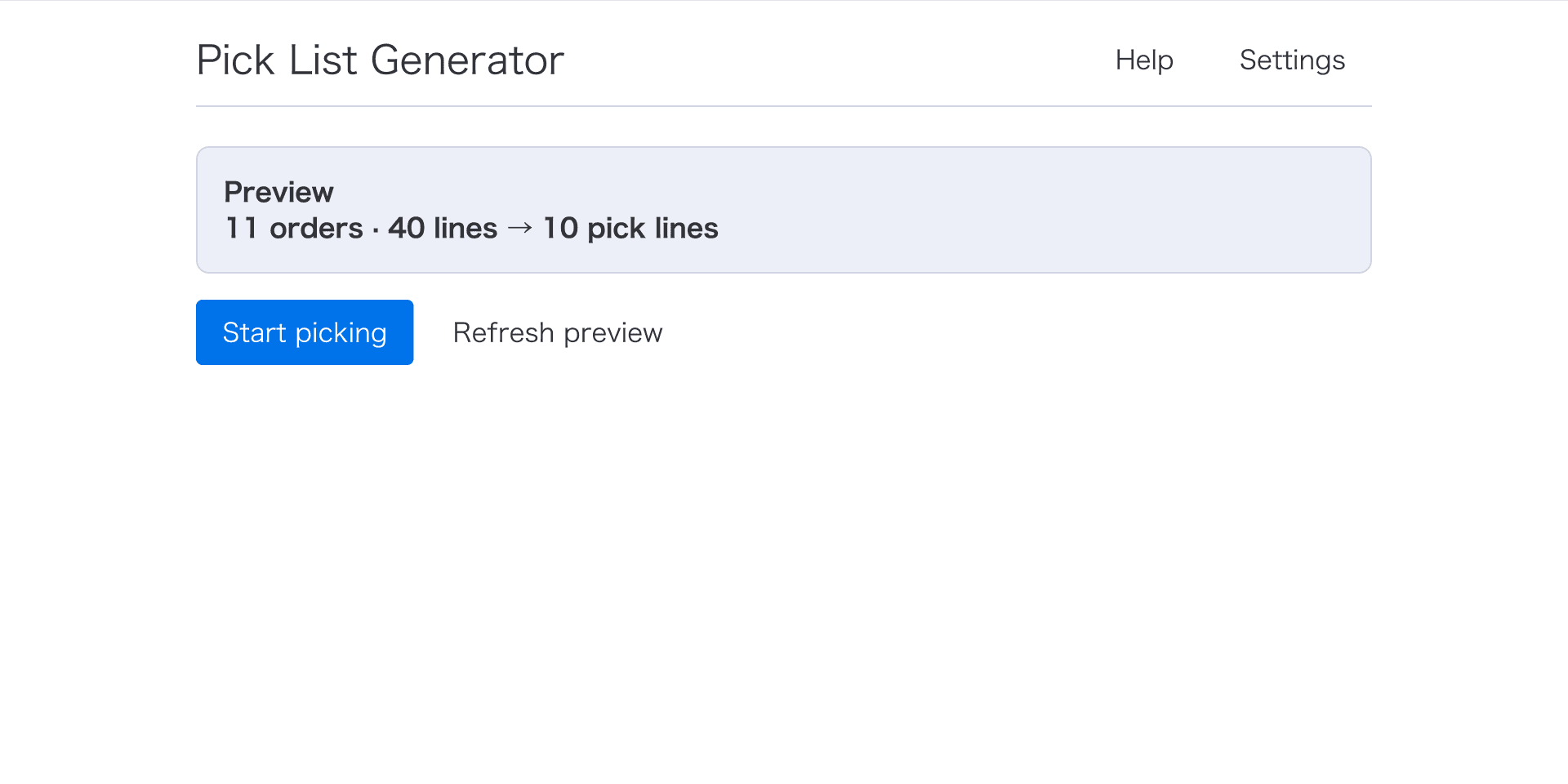
The app opens on the Generate screen. Choose the groups you want to include, and the preview tells you how many orders and order lines carry your ready-to-pick status.
Click Generate pick list and the app does three things:
- Merges the same SKU across every selected order into one line and adds up the quantities.
- Sorts the lines by storage location, comparing the numbers by value rather than as text, so A-01-02 comes before A-01-10.
- Splits the result into waves of up to 500 pick lines, so no single list runs longer than one trip can carry.
Order lines with no quantity are flagged and left out, so nobody on the floor is handed a line without a number on it.
Step 3: Pick on a phone or tablet
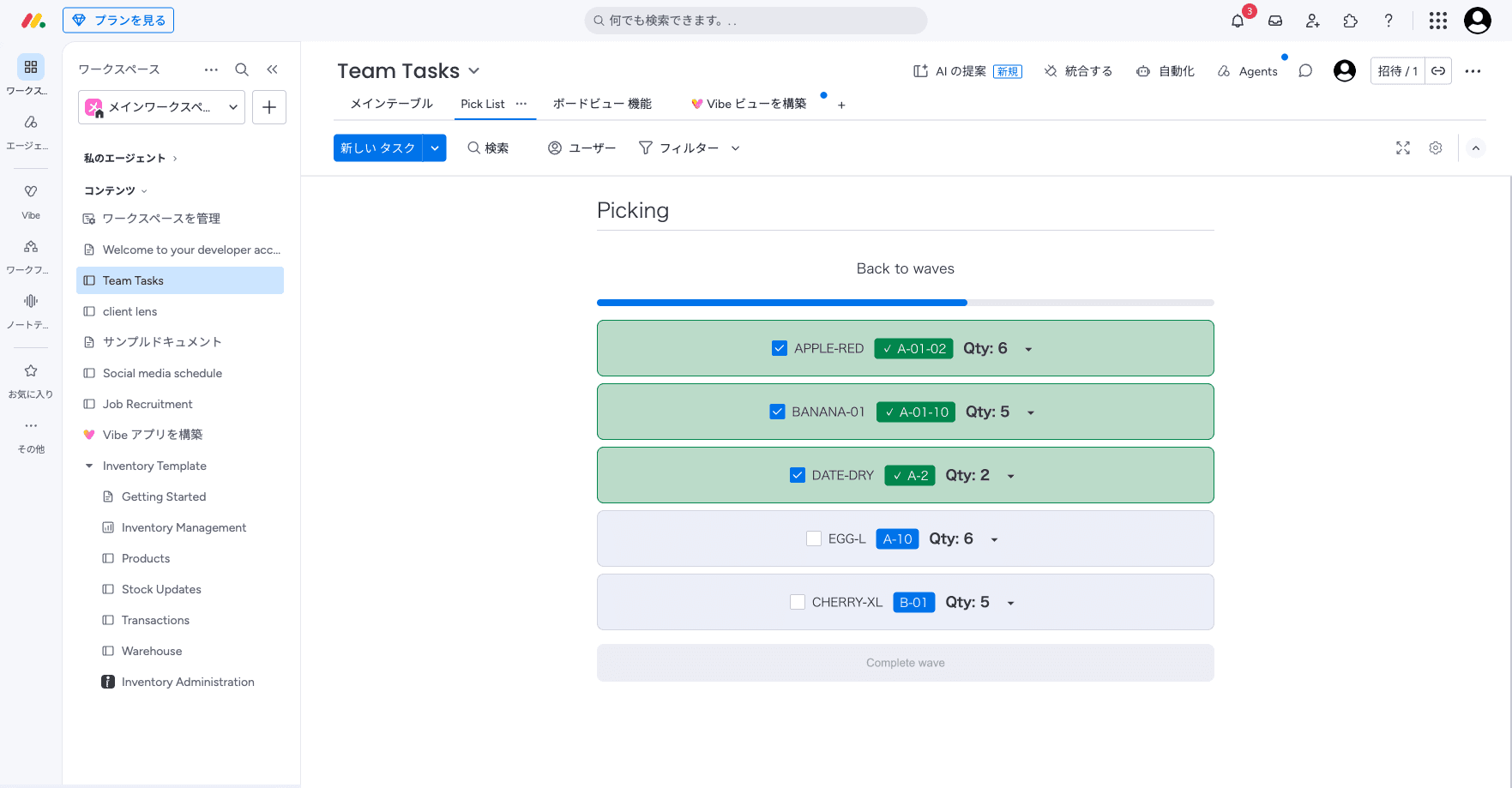
Open a wave to see its pick lines. Walk the route in location order and check off each line as you pick it. The indicator at the top shows how many lines are left.
Every check is saved as you make it, so you can reload the page or stop for the day and pick up where you left off. If someone else has the same wave open and updates it, you will see "This wave was updated on another device." and the screen refreshes to the latest state.
Step 4: Sort items back into orders
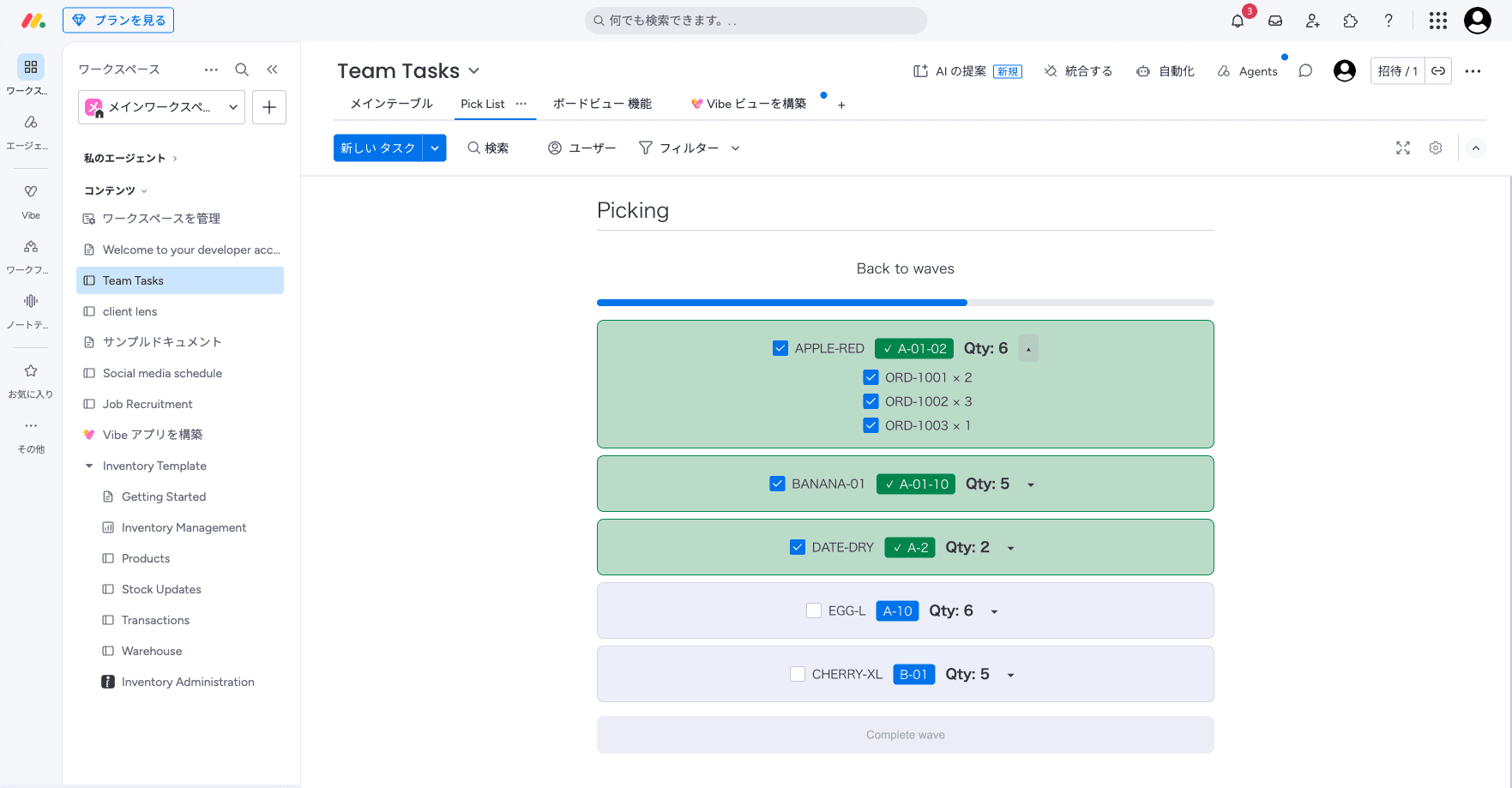
Batch picking gathers one SKU for many orders in a single trip. That saves a lot of walking, but it leaves you with a pile that still has to be split between the orders it came from.
Tap any pick line to see which orders need that SKU and how many each one takes. The breakdown is there to read, not to edit. Use it at the sorting station.
Step 5: Complete the wave
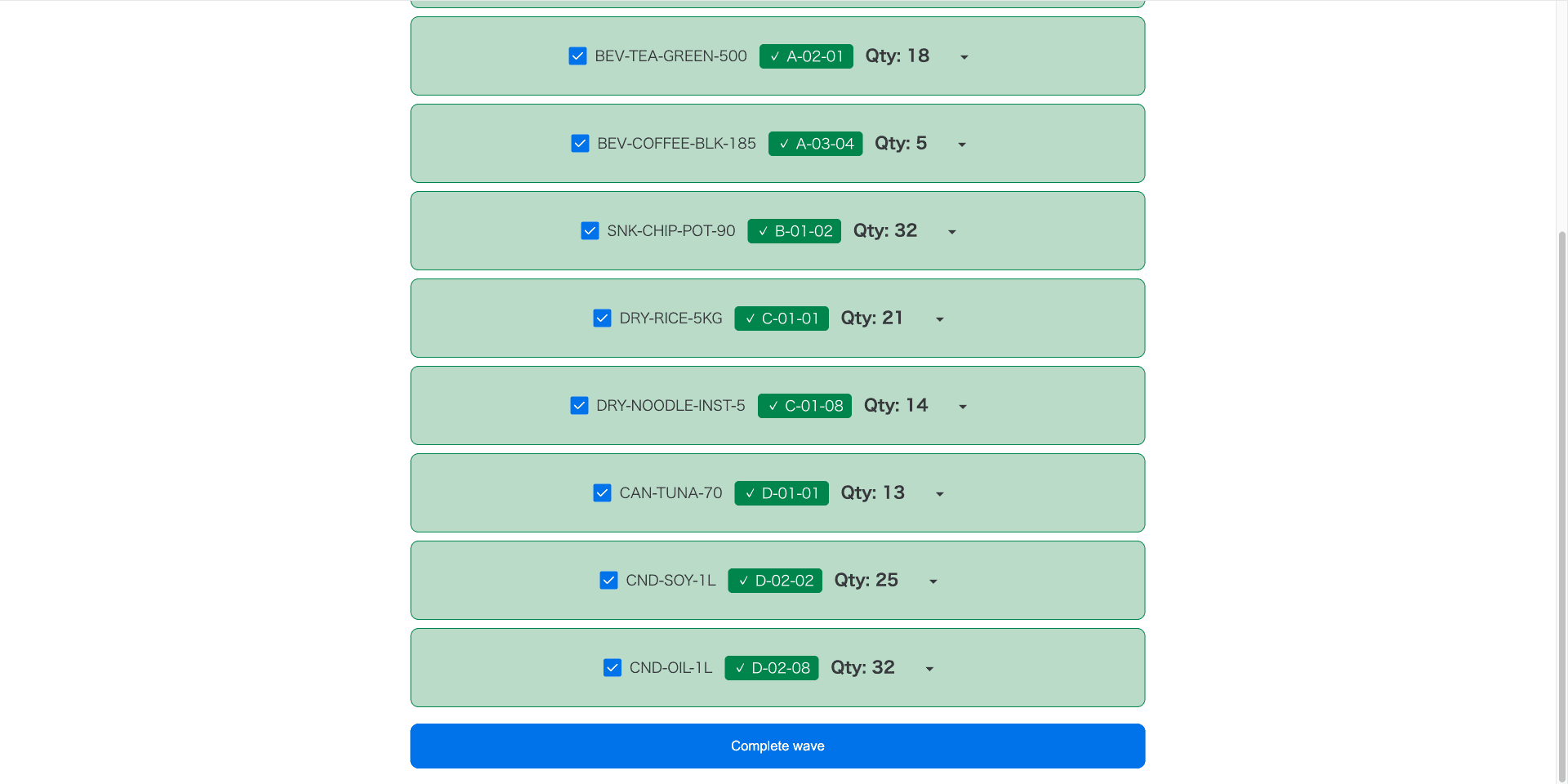
Once every line is checked off, click Complete wave. The status column of that wave's orders is updated in one batch straight away — there is no second confirmation — and their subitems are left untouched.
Completing a wave is the only thing the app ever writes to your board.
Printing
Click Print on the wave screen to switch to a print layout, then print it from your browser's print dialog.
Troubleshooting
- The wizard keeps reopening, or nothing is generated
- Check the column mapping and the ready-to-pick status in Setup, then check that orders on the board actually carry that status value.
- "A pick list is in progress"
- An earlier list is still open. Click Resume pick list to carry on with it, or Delete pick list to throw it away, then generate a new one.
- "Failed to load orders"
- The app could not read the board. Reload the board view and check that the app has permission to read boards.
- "You have view-only access to this board"
- Your monday.com permissions on this board are view-only, so you cannot generate a list or pick against it. Ask a board owner for edit access, then reopen the view.
Support
Questions, problems, or something you need the app to do? Email us and we will get back to you.
support@scritt.com